
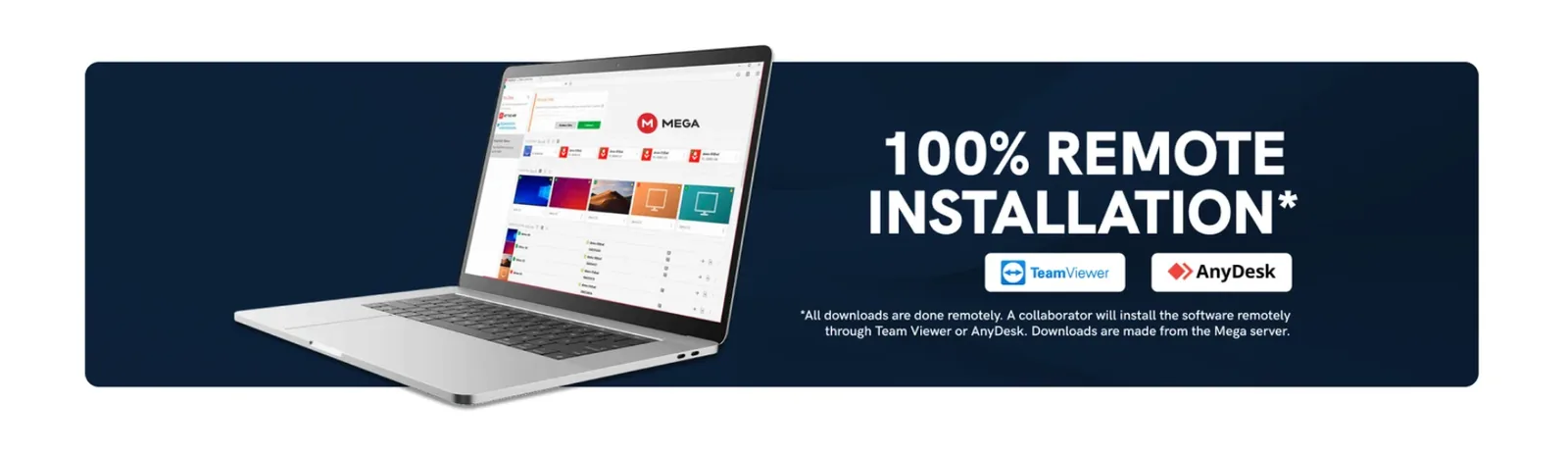
Before diesel diagnostic software shows you a single fault code it has to load a manufacturer-specific driver stack, recognise a vehicle communication interface, and check a licence over the internet. Installation and driver or configuration mistakes are one of the most common reasons a new setup will not connect on the first truck — alongside the wrong diagnostic connector, adapter firmware, or a key that was never turned to ON. A remote install takes the software side of that list off your plate.
What a remote install actually covers
A proper session covers the whole chain that has to line up before the software can talk to a truck:
- Installing the application itself with administrator rights.
- Installing the RP1210 and/or J2534 device drivers in the correct order, before the adapter is ever plugged in.
- Configuring the adapter so the software sees it as a valid communication device.
- Activating the licence online and confirming the machine can reach the licensing servers.
- Setting antivirus and firewall exceptions where the OEM installer needs them.
- Launching the software and confirming the adapter is recognised before disconnecting.
Check your laptop qualifies before you buy
Windows version and administrator rights
Modern OEM diesel packages target 64-bit Windows, and some exclude specific configurations outright. Detroit Diesel DiagnosticLink 8, for example, requires 64-bit Windows 11 and does not support Windows in S Mode — which quietly blocks installation on plenty of retail laptops out of the box. OEM installers also need genuine administrator rights, so a locked-down company laptop can stop an install dead before anything technical goes wrong.
Licensing needs internet — and does not stay activated forever
Many diesel packages activate online and then expect the machine to reconnect on a schedule. DiagnosticLink Standard, for instance, requires a reconnection every 90 days and Professional every 30 days; miss the window and features get disabled. A laptop that lives in the bay and rarely sees a network is a real and avoidable failure mode. Licensing traffic also has to be allowed out: DiagnosticLink 8 cites outbound access on TCP port 48481 as an install requirement, and on a filtered shop network a blocked port looks exactly like a broken licence to the person standing at the truck.
The hardware your software has to talk to
Software is only half the chain. A session also needs a vehicle communication interface — a Nexiq USB-Link 2 or 3, or a DG Technologies DPA5, are the ones most heavy-duty shops already own — plus the right cable for the truck’s diagnostic connector, typically a 6-pin or 9-pin Deutsch on the J1708/J1939 bus. Getting the connector wrong is its own cause of a no-connect that no install can fix.
RP1210 or J2534?
Heavy-duty and commercial diagnostics are built on the TMC RP1210 standard, while J2534 pass-thru is the reprogramming and light-duty standard. Most truck adapters implement both, so the practical question is which one your software expects to see — something the setup technician confirms for you.
Install the drivers before you plug the adapter in
This is the pitfall that catches the most DIY installs. RP1210 and J2534 device drivers must be installed before the interface is connected to the PC for the first time. Connect it first and Windows binds its own generic driver, and the adapter then never appears in the software’s device list. Unpicking that afterwards is far more work than doing it in the right order once — which is why every package in our diesel diagnostic tools range ships with this setup included.
What happens during the session
You install the remote-support application and share the one-time session details; the technician connects with your permission, works through the list above while you watch, and confirms the software launches and sees the adapter before disconnecting. Have the adapter and cable to hand so device detection can be tested for real, and know your engine make and applications so the correct package is installed rather than a best guess. Session length varies with the package and your connection speed, so ask when you book.
Worth pre-empting: some antivirus products flag OEM diagnostic installers or their drivers as suspicious. That is a false positive on legitimate software behaving the way low-level hardware drivers must, not a sign anything is wrong with the package. Any exception should be scoped to the install folder, never a blanket disabling of your protection.
Why the remote connection is safe
This is not a matter of trust — it rests on how the tooling works:
- A fresh password every time. TeamViewer QuickSupport generates a new one-time password at each launch, and it expires when the session ends. Yesterday’s code is worthless today.
- No unattended access. QuickSupport offers no unattended-access capability at all, so nobody can reconnect later without you starting a new session.
- Encrypted in transit. Sessions use AES-256 encryption with RSA key exchange.
- You are present throughout. You see every action on your own screen and can end the session instantly.
Sensible precautions
- Close personal files, email and banking tabs first — there is simply no reason for them to be on screen.
- Start the session yourself and share the one-time ID. Never accept an unsolicited connection request from anyone claiming to be support.
- Type any Windows password yourself rather than sharing it, and stay at the machine until the software is confirmed working.
What a finished install looks like
The application launches without warnings, the adapter is recognised as a valid RP1210 or J2534 device, the licence is active with its reactivation schedule understood, and firewall and antivirus are configured to leave it alone. That is the difference between software that is installed and a setup that is ready for the first truck you plug into.
At DiagTechPro every purchase includes a remote install and setup over TeamViewer. Browse the full range of diagnostic tools to find the right fit for your shop — and if you are unsure whether your laptop or adapter is suitable, ask before you order.
Leave a Reply